Cookie Consent

Our website relies on small data files placed in your browser to keep core pages working, measure traffic, and tailor on-site messaging. Some files are required and some are optional. Use the bottom-of-page banner to accept the optional ones, decline them, or revisit your choice later. Full disclosures live in the Cookie Policy and the Privacy Policy, which together explain how the consent management platform records each preference, how long it is stored, which vendors receive a signal, and how shoppers in the European Union, the United Kingdom, and California can exercise the rights granted by their local data-protection rules.

We value your privacy

We use cookies to enhance your browsing experience and analyze site traffic. With your consent, we also load third-party advertising and conversion-tracking tags to measure ad performance and deliver relevant ads. Read our Privacy Policy and Cookie Policy for full details on advertising and analytics tracking.

Skip to main content
Print Store 360 - Printers, Scanners & Supplies
0 0
Sign In Sign Up
Home All-in-One Laser Printers Tank Printers Enterprise Scanners
  • Photo Printers
  • Inkjet Printers
  • Portable
  • Enterprise Scanners
  • Document Scanners
  • About Us
  • Blog
  • Contact
  • Privacy Policy
  • Terms of Service
  • Shipping Policy
  • Return Policy
  • Warranty Information
  • Accessibility
  • Cookie Policy
Home Blog Work From Home Printing: Essential Guide for Remote Workers

Article Not Found

The article you're looking for doesn't exist.

Back to Blog
Back to Blog
Guides

Work From Home Printing: Essential Guide for Remote Workers

Work From Home Printing: Essential Guide for Remote Workers

Remote work printing guide: Recommended printers for working from home, mobile printing setup, and tips for productive home office printing.

The Evolution of Home Office Printing

The shift to remote work has transformed how professionals think about printing. What was once handled by shared office printer equipment is now a personal responsibility requiring thoughtful equipment selection. Setting up an effective home office printing solution means balancing print quality, cost, convenience, and the unique constraints of working from home.

Work from home printing requirements differ significantly from traditional office setups. Remote workers need reliable, quiet home printer options with wireless Wi-Fi connectivity, mobile printing support, and low running costs for home use. The ideal remote work printer integrates seamlessly into your daily workflow while minimizing operational headaches.

This comprehensive guide covers everything remote workers need to know about home office printing: selecting the right equipment, setting up for maximum productivity, managing costs, and leveraging modern features that make working from home more efficient. Whether you're newly remote or optimizing an existing setup, these insights will help you create an effective printing environment.

Understanding Remote Work Printing Needs

Remote work printing encompasses a different mix of documents compared to traditional office environments. Understanding your specific needs helps you select appropriate equipment and configure it for maximum productivity.

Document Types and Volume

Most remote workers print a variety of document types: contracts requiring signatures, reference materials, presentations, and occasional photos. Estimate your typical pages per month to guide printer selection. Light users printing under 100 pages monthly have different needs than high volume users printing 300+ pages.

Color vs. Monochrome Needs

Assess how much color printing your work requires. Many remote workers find that 80% or more of their printing is black text, with occasional color for presentations or graphics. This pattern influences whether an inkjet printer with versatile color capabilities or a laser printer optimized for text makes more sense.

Scanning and Document Digitization

Remote work often requires scanning signed documents, receipts, and physical paperwork for digital submission. A multifunction printer with scanning capabilities eliminates the need for separate equipment. Look for features like scan-to-email and cloud storage integration that streamline document workflows.

Recommended Printers for Remote Work

Different remote work scenarios call for different printing solutions. These categories help you identify the right fit for your situation.

All-in-One Office Printers

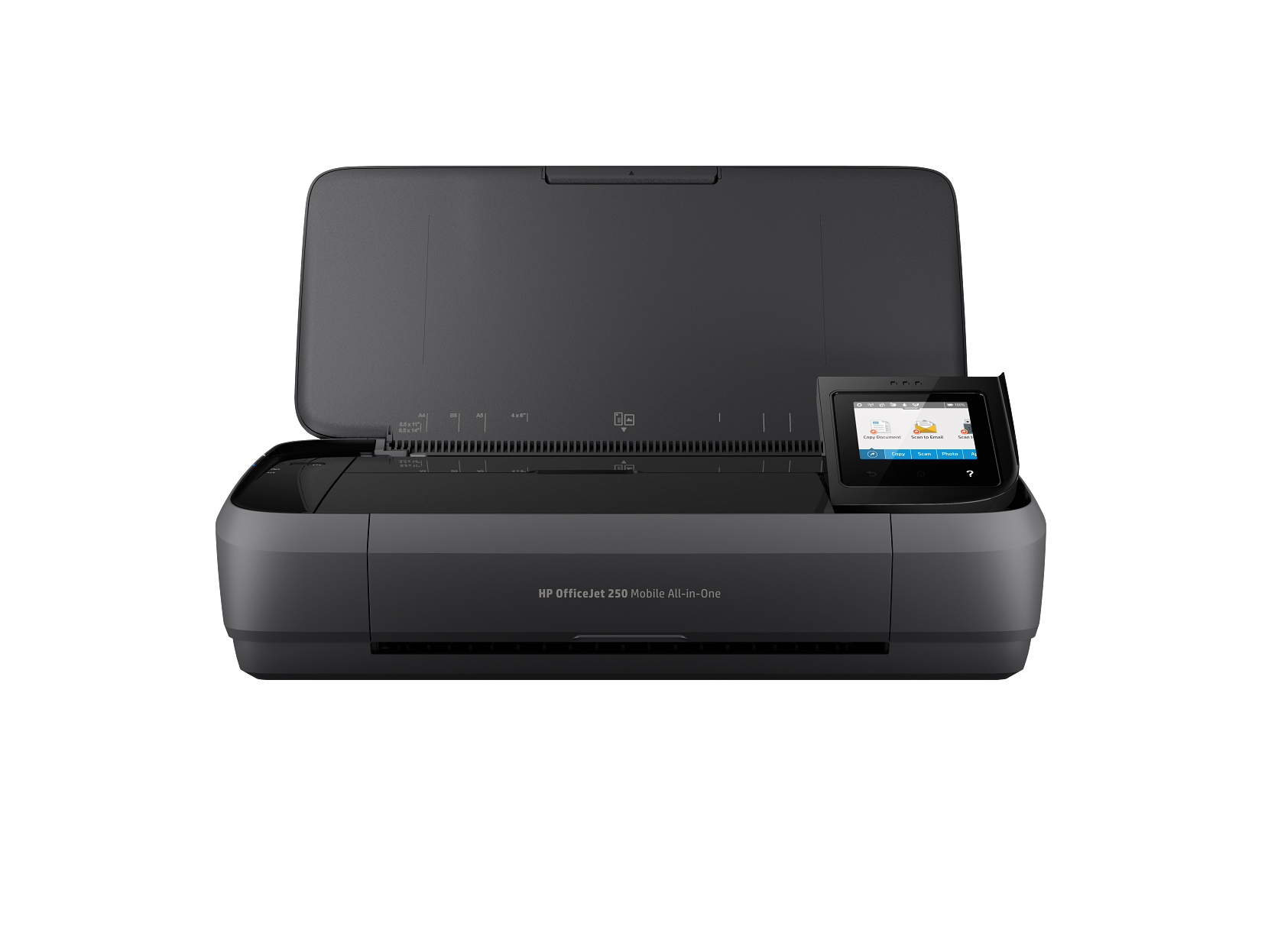
Full-featured multifunction printer models designed for home office use combine printing, scanning, copying, and sometimes faxing in one compact device. These all-in-ones handle the varied demands of remote work effectively, providing professional capabilities without the bulk of commercial equipment.

Look for models with Wi-Fi connectivity, automatic duplex print, and a capable automatic document feeder for multi-page scanning. Print speeds of 15-25 pages per minute satisfy most remote work requirements without occupying excessive desk space.

Compact Inkjet Printers

For remote workers with lighter printing needs, compact inkjet printer models offer excellent value. These affordable printers deliver good print quality for documents and occasional photos while fitting easily into small home office spaces.

Compact inkjets are ideal for occasional printing under 50-100 pages per month. While ink cartridges cost per page is higher than larger printers, the lower upfront investment makes sense for light users. Consider ink subscription services to manage supply costs effectively.

Color Laser Printers

Color laser printers serve remote workers who prioritize speed and document durability. Laser printer technology delivers fast print speeds and crisp text quality ideal for professional documents. Ink toner doesn't dry out between uses, making lasers perfect for sporadic printing patterns.

For executives and professionals who print formal documents, presentations, and reports, color laser printers provide appropriate quality and speed. Higher upfront costs are offset by lower per-page costs for users printing consistently.

Essential Remote Work Printing Features

Modern home printer features enhance remote work productivity. Prioritize these capabilities when selecting equipment:

Wireless Wi-Fi Printing

Wi-Fi connectivity is essential for flexible home office arrangements. Wireless printing allows you to position your printer wherever convenient without cable routing constraints. Print from your laptop anywhere in your home without physical connections.

Mobile Printing

The ability to print from phones and tablets provides flexibility for mobile work styles. Whether you're reviewing documents on your iPad or printing email attachments from your smartphone, mobile printing keeps you productive. Most printers offer manufacturer apps alongside AirPrint and native Android support.

Cloud Printing

Cloud connectivity enables printing documents stored in Google Drive, Dropbox, OneDrive, and other cloud services directly. This feature streamlines workflows by eliminating file downloads before printing. Access and print files from anywhere with internet access.

Scanning Capabilities

Efficient scanning transforms physical documents into digital files quickly. Look for scan-to-email, scan-to-cloud, and scan-to-device options. OCR (optical character recognition) creates searchable PDFs from scanned documents, making information retrieval easy.

Quiet Operation

A noisy printer can disrupt video calls and concentration. Modern home printer models prioritize quiet operation suitable for residential environments. Check noise specifications, particularly if your printer will be near your workspace.

Automatic Duplex Printing

Automatic duplex print capability saves paper by printing on both sides without manual intervention. For environmentally conscious remote workers and those looking to reduce supply costs, duplexing is a valuable feature.

Setting Up Your Home Office Printer

Proper setup maximizes your printer's usefulness for remote work. Follow these steps for optimal configuration:

Step 1: Strategic Placement

Position your home printer near your Wi-Fi router for reliable connectivity. Keep the printer away from your primary meeting space to avoid video call disruptions. Ensure easy access for paper loading and maintenance without disrupting your work area.

Step 2: Wireless Configuration

Connect via the manufacturer's mobile app for the easiest wireless setup experience. The app guides you through Wi-Fi network connection and printer configuration step by step. Ensure your printer is connected to the same network as your work devices.

Step 3: Enable Smart Features

Activate available smart features during initial setup. These may include ink subscription trials, extended warranty coverage, and enhanced cloud connectivity. Taking advantage of these offers during setup maximizes your printer's value.

Step 4: Configure Mobile Printing

Set up printing from all your devices—laptop, phone, and tablet. Install manufacturer apps and configure native printing support (AirPrint for iOS, native printing for Android and Windows). Test printing from each device to ensure everything works correctly.

Step 5: Create Workflow Shortcuts

Configure shortcuts for frequent tasks. One-tap printing of common documents, quick scan-to-email configurations, and preset copy settings accelerate daily workflows. These automations save time over the life of your printer.

Managing Home Office Printing Costs

Cost management is crucial for remote workers covering their own printing expenses. These strategies reduce ongoing costs:

Ink Subscription Services

Subscribe to an ink subscription service for automatic ink cartridges delivery and significant savings compared to retail purchasing. These programs ship supplies before you run out based on your actual pages per month usage.

Duplex Printing

Enable automatic duplex print as your default setting. Two-sided printing reduces paper consumption by up to 50%, directly lowering supply costs while reducing environmental impact.

Consider Tank Printers

For high volume printing exceeding 100-200 pages per month, ink tank printers offer dramatically lower cost per page. The higher initial investment pays back quickly through reduced supply costs.

Optimize Print Settings

Use draft mode for internal documents and reference materials. Reserve high-quality settings for client-facing documents. This selective approach extends ink cartridges life significantly.

Maintaining Professional Print Quality

Remote work often involves producing professional documents. Maintain excellent print quality with these practices:

  • Use quality paper - Professional documents deserve good paper stock
  • Keep supplies fresh - Replace ink cartridges and ink toner before quality degrades
  • Run maintenance cycles - Periodic cleaning maintains print quality
  • Match settings to output - Use appropriate quality levels for each document type

Your home office printing setup represents your professional image in remote communications. Investing in capable equipment and maintaining it properly ensures your printed materials always make a positive impression.

More articles

  • How to Choose the Right Printer for Your Home Office in 2024
  • Laser vs Inkjet Printers 2024: Complete Buying Guide
  • Mobile Printing App Setup Guide: Wireless Printer Installation
  • Scanner Buying Guide: Document Scanners vs Flatbed Scanners
  • 10 Ways to Reduce Printing Costs and Save Money on Ink
Share this article

Related Articles

Free Shipping

Lower 48 states

Secure Checkout

256-bit SSL encryption

30-Day Returns

Easy return process

Print Store 360 - Printers, Scanners & Supplies

Your trusted independent source for printers and scanners. Browse, compare, and shop with confidence.

  • 1-325-244-5856
  • contact@printstore360.net
  • Print Store 360
    15500 Voss Rd Ste 1122
    Sugar Land, TX 77498-4601

Customer Service

  • Contact Us
  • Shipping Policy
  • Returns & Refunds
  • My Orders
  • Buying Guide
  • Create Account

Shop

  • About Print Store 360
  • All Printers
  • All-in-One Printers
  • Tank Printers
  • Scanners
  • Blog

Legal

  • Privacy Policy
  • Terms & Conditions
  • Purchase Terms
  • Cookie Policy
  • Accessibility
  • Do Not Sell My Info
  • Warranty
  • Disclaimer
  • Sitemap

Disclaimer: Print Store 360 is an independent retailer and is not affiliated with, endorsed by, or sponsored by any printer manufacturer. All product names, logos, and trademarks are the property of their respective owners and are used for identification purposes only.

© 2025 Print Store 360. All rights reserved.