
Mobile Printing App Setup Guide: Wireless Printer Installation
How to set up your wireless printer: Step-by-step wireless printer setup guide for iPhone, Android, Windows, and Mac computers.
Introduction to Wireless Printer Setup
Setting up your new home printer with Wi-Fi connectivity opens a world of convenience and productivity. Wireless printing allows you to print from any device connected to your network—laptops, smartphones, tablets, and desktop computers all gain access to your printer without cable connections. This comprehensive guide walks you through the complete setup process for your wireless office printer or home printer.
Modern printers offer sophisticated connectivity options that make setup easier than ever. Mobile printing apps provided by manufacturers guide you through the configuration process step by step, eliminating the complexity of traditional printer installation. Whether you're configuring an inkjet printer for your home office or a laser printer for a busy office, the fundamental process remains similar.
Beyond basic printing, Wi-Fi connectivity enables advanced features like cloud printing, automatic supply ordering, and remote diagnostics. Understanding these capabilities helps you maximize the value of your multifunction printer investment. This guide covers everything from initial setup to advanced feature configuration.
Download Your Printer's Mobile App
The mobile printing app is the easiest way to set up your home printer and unlock all its wireless features. These apps are available free from major platforms:
- iOS: Apple App Store for iPhone and iPad
- Android: Google Play Store for Android smartphones and tablets
- Windows: Microsoft Store or manufacturer website
- macOS: Mac App Store or manufacturer website
The mobile app serves as your central control hub for printer management. Beyond initial setup, you'll use it to check ink cartridges levels, run diagnostics, configure settings, and access advanced features. Installing the app on all devices that will print ensures everyone has full access to printer functionality.
Wireless Printer Setup: Step-by-Step
Follow these steps to connect your home printer or office printer to your Wi-Fi network:
Step 1: Unbox and Power On
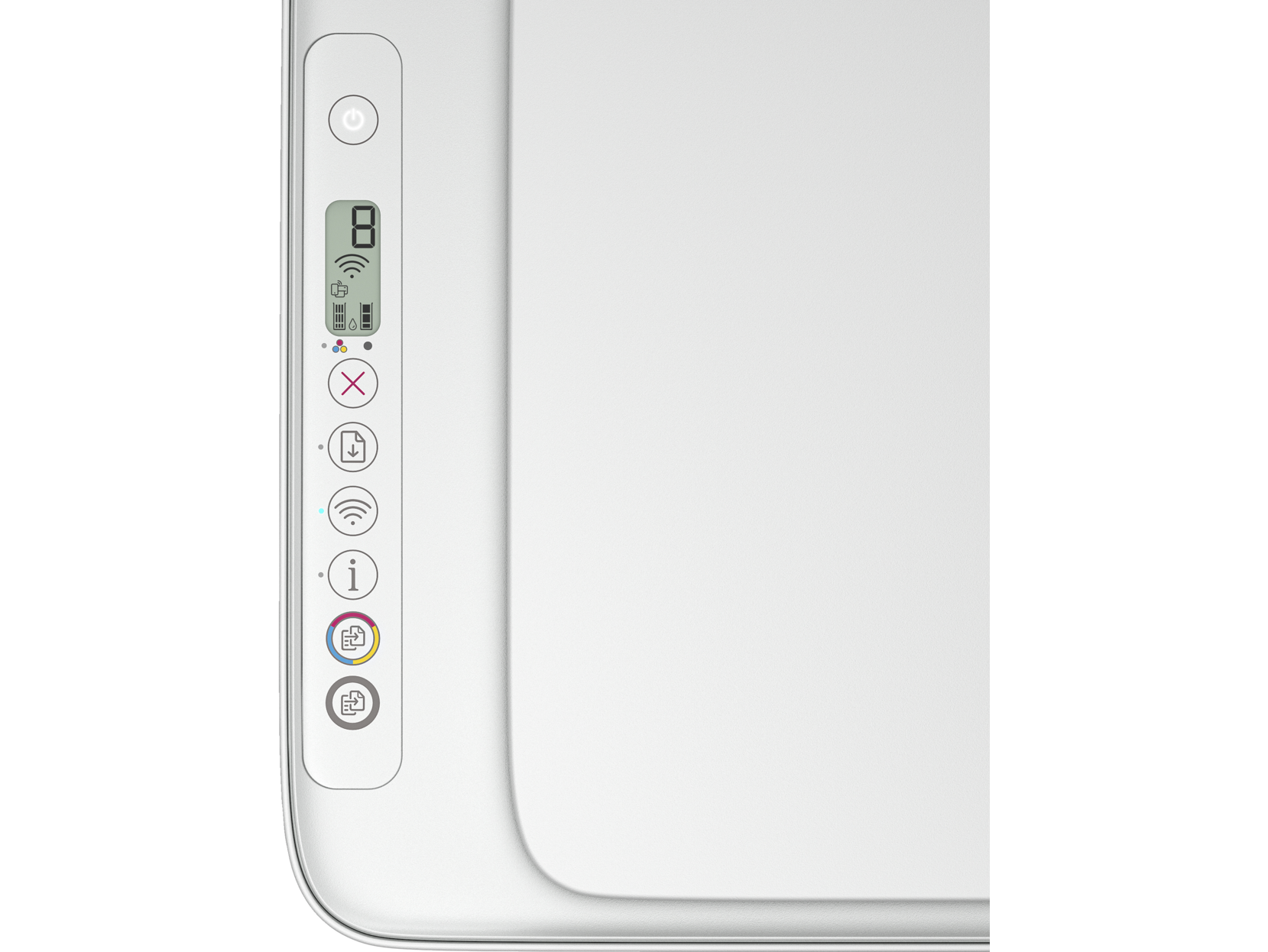
Remove all packaging materials, including protective tape and shipping inserts inside the printer. Connect the power cord and turn on the printer. Allow the printer to complete its initialization process—this may take a few minutes for first-time startup. Most printers offer on-screen guidance through initial setup steps on their control panels.
Step 2: Install Ink Cartridges
Install the included ink cartridges or ink toner following the printer's instructions. For inkjet printer models, remove protective tape from cartridge contacts before installation. Ensure cartridges click securely into place. The printer may run an alignment or calibration process after cartridge installation to ensure optimal print quality.
Step 3: Load Paper
Load paper into the paper tray according to your printer's specifications. Adjust paper guides to fit snugly against the paper stack without bending sheets. Most home printer models accommodate letter-size paper by default, with adjustable guides for other sizes.
Step 4: Open the Mobile App
Launch the manufacturer's mobile app on your smartphone or tablet. Create a new account or sign in if you already have one. The account enables cloud features, supply management, and access to your printer from any location.
Step 5: Add Your Printer
The app will search for nearby printers during setup. Ensure your printer is powered on and within range of your mobile device. Follow the app's prompts to identify and select your printer model. Some printers display a connection code that you'll enter in the app for secure pairing.
Step 6: Connect to Wi-Fi
The app guides you through connecting your printer to your Wi-Fi network. You'll select your network from a list and enter the password. The printer then connects wirelessly, enabling printing from any device on the same network. This step is crucial for enabling remote printing and cloud features.
Step 7: Print Test Page
After successful Wi-Fi connection, print a test page to verify setup. This confirms your printer is properly connected and producing quality output. Check that print quality is acceptable and all colors print correctly.
Step 8: Activate Smart Features
Many printers offer smart features that provide additional value when activated during setup. These may include ink subscription trials, extended warranty coverage, and enhanced cloud connectivity. Review available options and enable features that match your needs.
Mobile Printing App Features
The mobile printing app delivers comprehensive printer control and productivity features:
Print from Anywhere
Cloud connectivity enables printing from any location with internet access. Send documents to your home office printer while traveling, or print files from cloud storage services directly. This capability is invaluable for remote workers and mobile professionals.
Mobile Scanning
Your multifunction printer's scanning capabilities are fully accessible through the mobile app. Scan documents to email, cloud storage (Google Drive, Dropbox, OneDrive), or directly to your mobile device. Advanced features include automatic document detection, edge correction, and OCR for creating searchable text files.
Ink Level Monitoring
Real-time visibility into ink cartridges and ink toner levels helps you anticipate replacement needs. The app displays remaining supply percentages and can notify you when levels run low. Integration with ink subscription services enables automatic ordering before you run out.
Printer Diagnostics
Troubleshooting tools help resolve common issues without technical support. Guided diagnostics walk you through solutions for print quality problems, connectivity issues, and paper jams. Automatic cleaning and alignment functions maintain optimal printer performance.
Shortcuts and Automation
Create customized shortcuts for frequent print and scan tasks. A single tap can execute complex workflows like printing specific documents, scanning to predefined destinations, or creating copies with particular settings. These shortcuts dramatically accelerate routine printing tasks in your home office.
Printing from Different Devices
Your Wi-Fi-connected printer works with all devices on your network:
Windows Computers
Windows automatically detects network printers and can install drivers automatically. You can also use the manufacturer's software for full feature access including advanced print quality settings and maintenance functions.
Mac Computers
macOS supports AirPrint for seamless wireless printing to compatible printers. For full functionality, install the manufacturer's Mac software. Both options enable printing, scanning, and printer management from your Mac.
Smartphones and Tablets
iOS devices use AirPrint for native wireless printing. Android devices support manufacturer apps and various mobile printing standards. Both platforms enable full printing and scanning functionality through dedicated apps.
Pro Tips for Optimal Printer Setup
Maximize your printer's capabilities with these expert recommendations:
- Position strategically - Place your printer within good Wi-Fi signal range and away from interference sources like microwave ovens.
- Enable smart features - Activate available smart features during initial setup for extended warranty and free ink trials.
- Configure duplex print - Set automatic duplex print as your default to save paper on everyday printing.
- Set up cloud services - Connect your printer to cloud storage for convenient document access and printing.
- Create shortcuts - Configure one-tap shortcuts for your most common print and scan tasks.
- Enable automatic updates - Keep firmware current for optimal performance and security features.
With proper setup and configuration, your wireless home printer or office printer becomes a powerful productivity tool accessible from every device in your environment. The convenience of Wi-Fi connectivity combined with mobile app control makes modern printing effortless and efficient.